
Read the automatic schedule
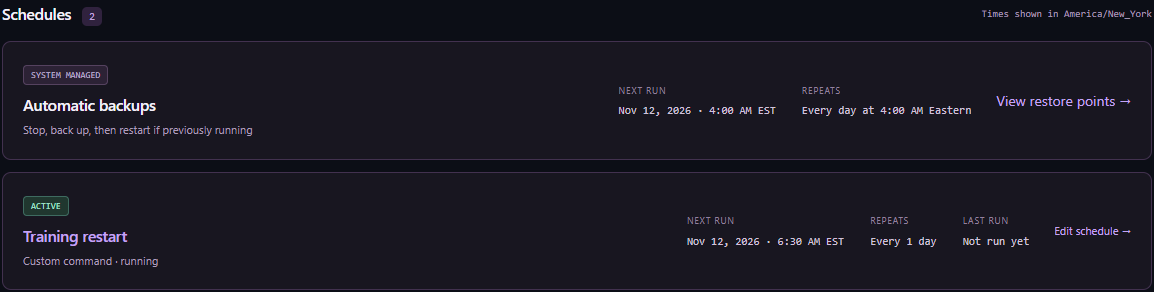
Select the server, open Backups and find Automatic backups. Check the frequency, time, mode and next run. The training example below shows a daily backup at 4:00 a.m. Eastern in stop-and-restart mode. A newly added server defaults to a daily live backup, so always read the mode shown for that server.

Find the same job in Automation
Open Automation on the same server. The system backup has its own read-only row. An ordinary custom task can have edit controls beside it. If you need a change to backup policy, record the server, current schedule and reason for the owner. Creating a second custom job can overlap the existing backup.
Check and use restore points
The panel keeps the latest three verified restore points per server. A manual backup while running avoids planned downtime, but different files can be captured at different moments. A consistent backup stops a running server first and brings it back afterward. Check the job status and the timestamp of the completed point.
Restoring replaces server files. Before requesting it, confirm the target server, the intended restore point and what changes since that point will be lost. A staff restore needs root review. Only the root superuser can download a full backup from the panel.