
Review a requested stop
Keep Epsilon Console open. A new request can open the Approvals prompt automatically. You can also open Approvals in the top bar. Match the requesting account, server and exact operation to the staff handoff. If the reason is unclear, contact the operator before approving.
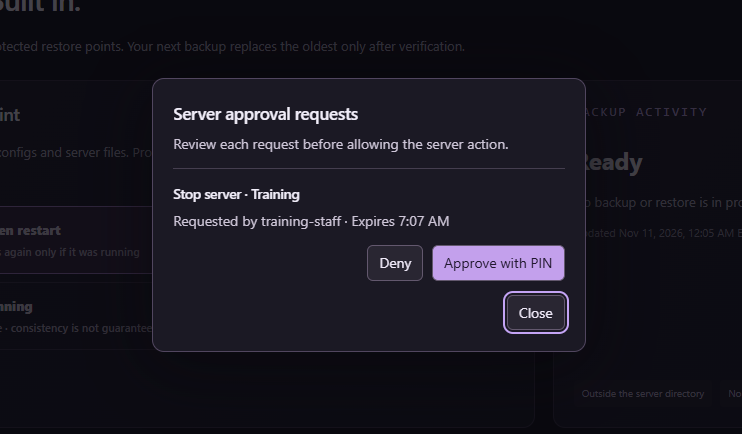
Approving gives the requesting console permission to complete that one action. Confirm the outcome on Overview or in the server log. Expired requests need a fresh confirmation.
Manage a device
- Open Devices under Panel security. For a new PC, verify the staff member and their enrollment request through your private staff channel.
- Paste the enrollment request, add a label you will recognize, and select Approve device. Ask the staff member to reconnect and use their own login.
- Use Suspend to pause access temporarily. Remove requires fresh approval. Ban blocks that device key until it is explicitly unbanned and approved again.
Check the scope of access
Device approval allows a Windows profile to reach the sign-in screen. The staff member’s panel account and per-server permissions still control what they can do. Downloading server files and full backups is reserved for the root superuser.